
Why Does Spotify Add Songs to My Playlist? A Quick Guide
Curious why does spotify add songs to my playlist? Discover how the Enhance feature works, why tracks get added, and how to manage your library.
7
- The Mystery of Unwanted Songs on Your Spotify Playlist
- Spotify’s Built-In Music Discovery Features
- How the Spotify Algorithm Influences Your Music
- External Factors Adding Songs To Your Playlists
- 6. Something More Sinister: Bot Activity and Streaming Fraud
- A Proactive Strategy for Playlist Purity and Growth
- Got Questions? We’ve Got Answers.
Ever found yourself listening to a favorite playlist, only to be jolted by a song you know you never added? The answer to why Spotify adds songs to your playlist is usually one of two things: it’s either an intentional music discovery feature you can turn off, or it’s an external factor like a shared playlist or third-party app.
The Mystery of Unwanted Songs on Your Spotify Playlist
It’s a common experience, and let’s be honest, it can be pretty frustrating. You spend hours, weeks, or even years curating the perfect vibe, only to have a random track show up and kill the mood. This guide is here to help you play detective and solve the mystery for good.
Think of your Spotify account like a house with several doors. Some doors, like the Enhance feature or Autoplay function, are left slightly ajar by Spotify to help you discover new music. Others, like collaborative playlists, are doors you’ve willingly opened for friends.
But then there are the other “doors”—like third-party app permissions or, in rare cases, a compromised account—that might be open without you even realizing it.
Identifying the Source of New Songs
Before you can stop it from happening, you need to figure out why it’s happening. Each cause leaves its own unique fingerprint. Spotify’s own features, for example, leave pretty obvious visual cues, while outside influences require a bit more digging.
We’ll walk through all the possibilities, including:
- Spotify’s Built-In Features: Tools like Enhance and Autoplay are designed to keep the music flowing, even if it means adding tracks you didn’t pick yourself.
- External Influences: This covers everything from collaborative playlists and third-party apps to potential account security issues.
- Artificial Activity: The less common but more serious issue of bot activity or streaming fraud impacting your playlists.
To make things easier, here’s a quick rundown of the usual suspects.
Quick Guide to Unwanted Song Additions
This table summarizes the most common reasons for unexpected songs and the key signs to look for.
| Reason | What It Is | Common Indicator |
|---|---|---|
| Enhance | Spotify adds recommendations directly into your playlist to match the vibe. | A green “sparkle” icon next to the Enhance button at the top of your playlist. |
| Autoplay | When your playlist ends, Spotify automatically plays similar songs to keep the music going. | Songs appear after your last track, and you’ll see “Autoplaying similar music” in the “Now Playing” bar. |
| Collaborative Playlist | Other users you’ve invited to the playlist are adding their own tracks. | A profile icon of another user appears next to the songs they’ve added. |
| Third-Party Apps | An external app or service you’ve connected to Spotify has permission to modify your playlists. | Random songs appear consistently, often from apps that build playlists for you. |
| Account Compromise | An unauthorized user has gained access to your account and is adding songs. | Unfamiliar songs, new playlists, or changes to your profile you didn’t make. |
| Streaming Fraud | Your account is being used by bots to generate fake streams for certain artists. | Batches of obscure songs are added, often played on a loop. |
Think of this table as your initial diagnostic tool. By matching the symptoms to the cause, you can quickly narrow down what’s going on with your account.
This flowchart gives you a simple decision-making path to quickly figure out why those new songs are appearing.
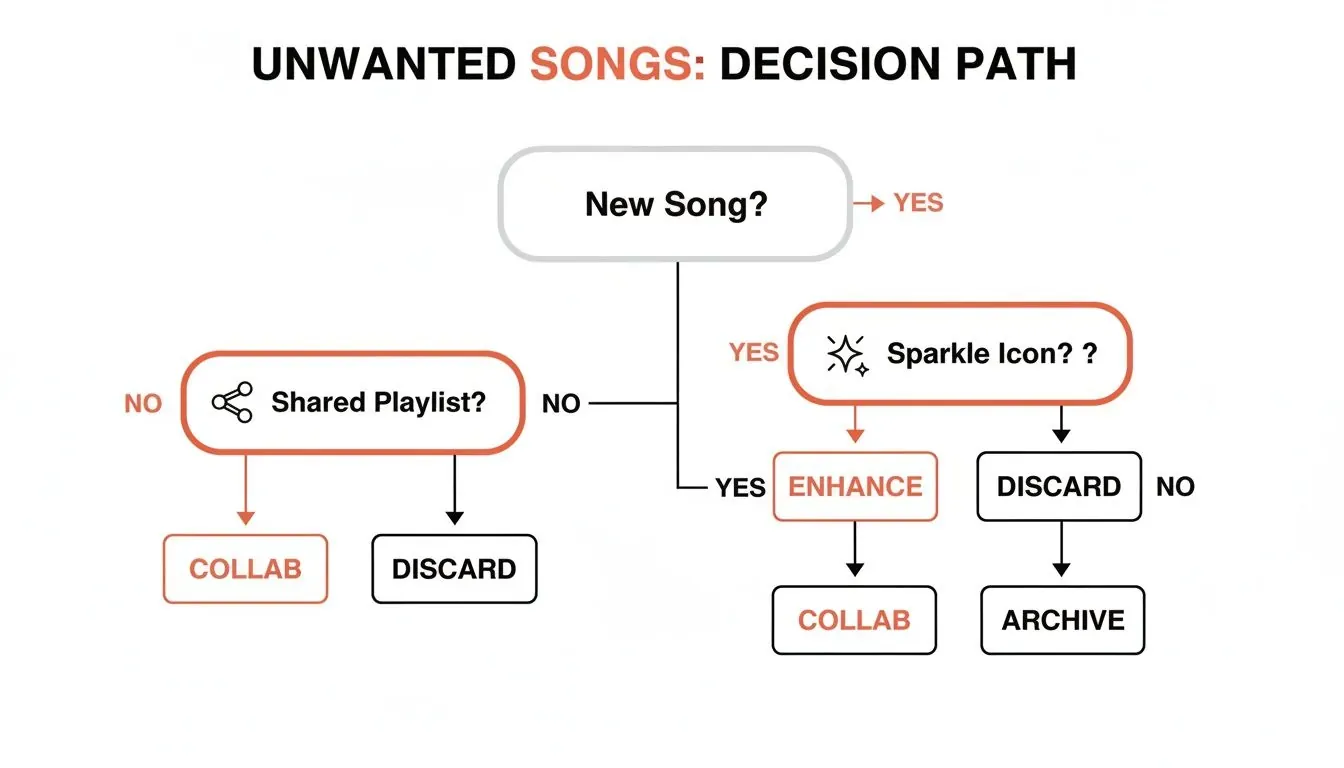
As the chart shows, the first move is always to check for that “sparkle” icon. If you see it, you’ve found your culprit: Spotify’s Enhance feature. Understanding this simple roadmap is your first step toward getting your playlist back to being 100% yours.
Spotify’s Built-In Music Discovery Features
More often than not, when you’re wondering “why does Spotify add songs to my playlist?”, the answer is hiding in plain sight. The platform has a couple of built-in features specifically designed for music discovery.
Think of your playlist as a garden you’ve carefully curated. Spotify sometimes plays the role of a helpful neighbor, dropping by to plant a new flower it thinks you’ll love based on what’s already there.
These “flowers” pop up thanks to two main features: Enhance and Autoplay. While their goal is to help you find your next favorite jam, they can definitely feel a bit intrusive if you’re not expecting them. The good news? You have complete control over both.
The Enhance Feature Explained
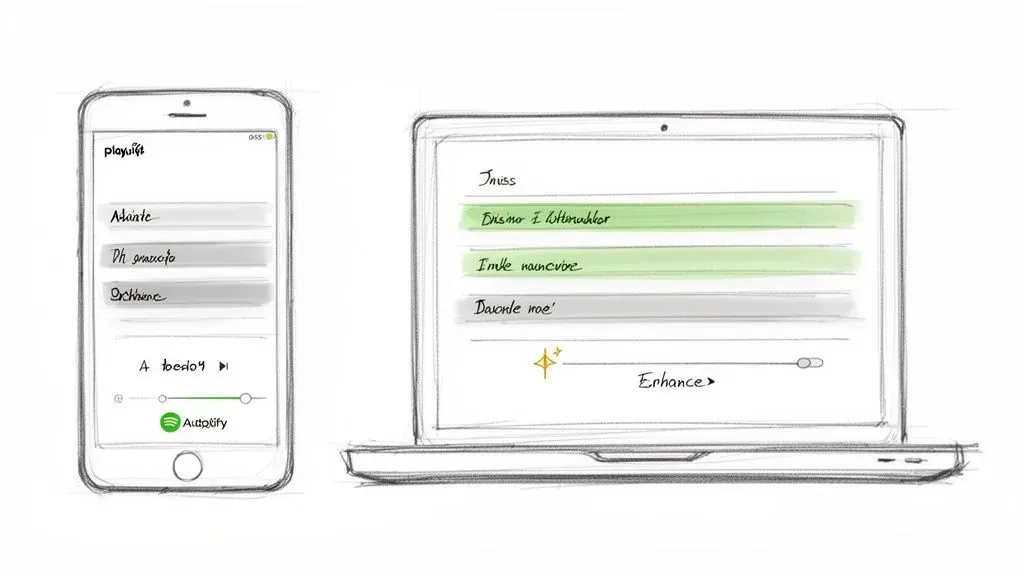
The Enhance feature is the most direct reason you’ll see unexpected songs appearing inside your existing playlists. Once you switch it on, Spotify sprinkles in personalized recommendations that match the playlist’s overall vibe and genre. It’s a pretty smart tool, designed to add one recommendation for every two tracks you’ve added yourself.
It’s actually easy to spot these algorithm-added tracks. On both mobile and desktop, songs added via Enhance have a small, green sparkle icon right next to them. That little visual cue is your confirmation that Spotify itself, not some mysterious stranger, added the song.
To get a handle on this, just look for the “Enhance” button at the top of your playlist.
- On Desktop and Mobile: The button, which usually has the same sparkle icon, can be toggled on or off. If it’s green or highlighted, the feature is active. Tapping it will immediately remove all the suggested songs, snapping your playlist right back to its original state.
This feature is managed on a per-playlist basis. This means turning off Enhance for your “Workout Mix” won’t affect the recommendations in your “Chill Lo-fi” playlist. You have to disable it for each playlist individually.
Understanding the Autoplay Function
While Enhance messes with your playlist directly, Autoplay works a bit differently. This is the feature that keeps the music going after your playlist or album has finished. Think of it as the encore at a concert you didn’t ask for but might end up enjoying anyway.
Instead of slotting tracks into your playlist, Autoplay creates a temporary, radio-style queue of similar songs. It’s a great way to discover new artists without lifting a finger, but if you prefer blessed silence after your curated experience ends, you’ll want to shut it off.
Unlike Enhance, Autoplay is a global setting that applies to your entire account.
How to Disable Autoplay:
- Open Settings: Tap your profile icon and select “Settings.”
- Find Playback Options: Scroll down until you see the “Playback” section.
- Toggle Autoplay Off: Find the “Autoplay” option (often described as “Enjoy non-stop music…”) and flip the switch to the off position.
By managing these two built-in tools, you’re taking the biggest step toward making sure every song you hear is one you’ve explicitly chosen. This is almost always the first and most effective fix when you’re scratching your head about why Spotify is adding songs to your playlist.
How the Spotify Algorithm Influences Your Music
Beyond the features you can turn on and off, Spotify’s powerful algorithm is always working in the background, shaping your listening experience. Think of it as a master music detective, constantly analyzing your behavior to figure out your unique taste. It doesn’t just see what you play; it sees how you play it.
Every single action you take is a clue. When you save a song, listen all the way through, or slam that repeat button on a new discovery, you’re sending a huge positive signal. On the flip side, skipping a song within the first 30 seconds tells the algorithm, “Nope, not for me.” These are the building blocks of your personal taste profile, which directly impacts what you see in places like Discover Weekly and, you guessed it, the songs suggested through Enhance.
The Signals That Drive Discovery
The algorithm’s main goal is to predict what you’ll love next, and it gets there by measuring how listeners engage with music. It’s not some random process; it’s a data-driven system built to bring resonant music to the surface. For artists and curators, understanding how this works is absolutely crucial for getting noticed.
A few key signals tell the algorithm if a song has potential:
- Saves: When listeners save a track to their library or add it to a playlist, that’s a powerful vote of confidence.
- Completion Rate: A high percentage of listeners finishing a song shows it’s actually engaging and not just getting skipped over.
- Repeat Listens: Playing a song multiple times in a short window is one of the strongest signs that a listener truly loves it.
- Playlist Adds: Organic adds to user-made playlists signal that a track is catching on with the community.
When a new release starts crushing these metrics, Spotify pays attention. According to music marketing experts, the algorithm looks at over 5 key engagement signals, like the save rate (saves divided by unique listeners) and completion rate, especially in the first 7-28 days. A track with a save rate above 5-10%—way higher than average—is a massive flag for a potential hit, pushing the algorithm to get it in front of more listeners, including you. You can get more of the nitty-gritty on these music marketing insights.
From Data to Your Playlist
So, how does all this data lead to random-seeming songs popping up in your playlist? When you hit that Enhance button, the algorithm dips into this pool of high-engagement tracks. It’s looking for songs that not only match your playlist’s vibe but have also proven to be “winners” with other listeners who have a taste profile just like yours.
In essence, a suggested song in your playlist isn’t just a random pick. It’s the result of thousands of other listeners’ positive reactions, filtered through an AI that believes you are the perfect next fan for that track.
This is exactly why some songs seem to blow up out of nowhere. They nailed that initial engagement, which unlocked a flood of algorithmic recommendations. For artists and playlist curators, digging into this data is everything. You can get a much clearer picture of a playlist’s health and see how a track is really performing by using a dedicated Spotify playlist analyzer to see these metrics in action.
External Factors Adding Songs To Your Playlists
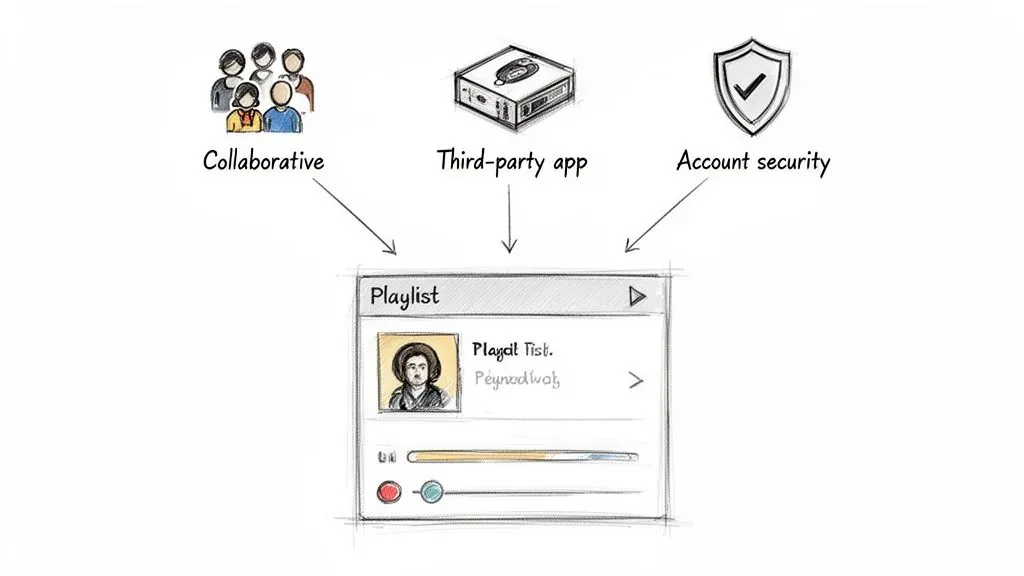
When you’ve eliminated Spotify’s built-in playlist features, it’s time to look beyond the app. Sometimes the question “why does Spotify add songs to my playlist” has nothing to do with its algorithm—it’s all about who or what you’ve given access to.
Think of your Spotify account like a shared house: even if you keep your door locked, guests or apps might be popping in uninvited. Here are the usual suspects:
- Collaborative Playlists: You’ve opened the door for friends to contribute.
- Third-Party App Permissions: Festival lineups, discovery tools, and other services can modify your playlists.
- Compromised Account: Someone else may be curating tunes without your consent.
Collaborative Playlists With Friends
Collaborative playlists are great for a group vibe—everyone can add, remove, or reorder tracks. But it’s easy to forget who’s on the guest list.
Spot a surprise song? Look for the “two heads” icon next to the playlist title. On desktop, the Added by column shows exactly who dropped each track. If a friend’s music choices clash with yours, either ask them to pause or remove the playlist from collaboration.
Third-Party App Permissions
Ever linked your Spotify to a festival app, a discovery tool, or a playlist builder? Those connections often grant permission to tweak your playlists. Over time, you can end up with forgotten apps still meddling in your music.
Next step: audit your third-party access.
How To Review App Access:
- Log in to your Spotify account in a web browser.
- Click Account in the left menu, then select Apps.
- Browse the list of services with access.
- Hit REMOVE ACCESS on any you no longer trust or use.
Think of this as changing the locks on your digital doors. Regularly revoking old permissions is a small habit that pays off big in keeping your playlists yours alone.
A Compromised Account
If tracks you’ve never heard surface in Recently Played, or brand-new playlists appear out of nowhere, your account could be in someone else’s hands. It’s rare but urgent—act fast.
Head to your account settings and change your password immediately. Then scroll down and click Sign Out Everywhere. That kicks out any interloper and resets your access across all devices.
6. Something More Sinister: Bot Activity and Streaming Fraud
Sometimes, the reason a strange song appears on your playlist goes beyond a simple feature or a friend’s prank. For artists and curators, there’s a much darker possibility at play: artificial streaming and bot activity. This is where automated accounts, or even real people paid to do so, rack up fake streams by adding specific tracks to thousands of playlists.
This isn’t just about a few unwanted songs cluttering your list. It’s straight-up streaming fraud. It messes with your listening data, which means Spotify’s recommendations for you will get worse and worse. For artists, the fallout can be catastrophic, leading to their tracks being pulled, royalties being withheld, and a permanent stain on their reputation.
Think of it like counterfeit money flooding the music economy. It completely devalues real, organic listening and just creates a ton of noise that hurts everyone. If you’re an artist or serious curator, learning to spot the red flags is the first step to protecting yourself.
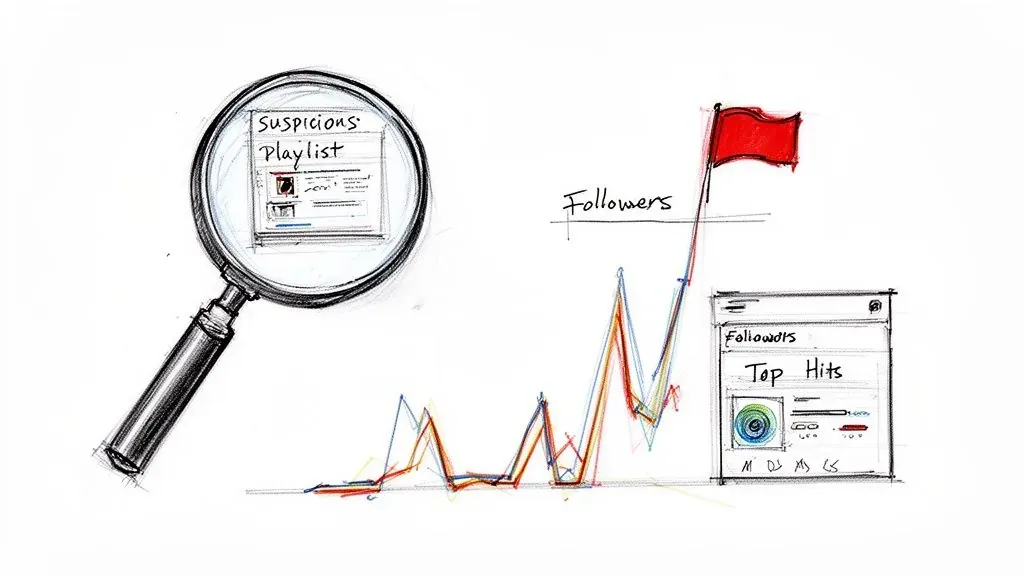
This image nails exactly what you should be looking for—a sudden, totally unnatural spike in followers is a massive red flag for fraud.
Tell-Tale Signs of a Botted Playlist
Fraudulent playlists often try to blend in, but they always leave clues. Real, authentic playlists tend to grow slowly and steadily as actual humans discover and follow them. Botted playlists are a different story entirely.
Learning to spot these signs is your best line of defense.
Keep an eye out for these classic warning signs:
- Sudden, Unnatural Follower Spikes: If a playlist explodes from 100 to 10,000 followers overnight, you can bet it’s juiced with bots. Real growth is a marathon, not a sprint.
- Generic Playlist Names: Be wary of playlists with vague, keyword-stuffed titles like “Top Hits 2024 Lofi Sleep Rain.” These are usually designed to game the search algorithm, not to reflect a genuine musical taste.
- Anonymous or Missing Curator: Legitimate curators are proud of their work and often link to their social media or a website. If there’s no way to tell who’s behind the curtain, it’s a big problem.
- A Bizarre Mix of Genres: Found a playlist with death metal, baby lullabies, and K-pop all thrown together? It’s almost certainly not curated for a human audience. It’s built to generate paid streams on specific tracks, period.
Using Data to Uncover Streaming Fraud
There’s no way you can manually check every single playlist. That’s where specialized data tools come in. Think of them as a private investigator for your music, digging through the data to separate the legit playlists from the fraudulent ones.
The most powerful weapon against streaming fraud is historical data. By tracking daily snapshots of millions of playlists, tools can instantly flag suspicious growth anomalies that are invisible to the naked eye.
This is why having a dedicated bot detection tool is a game-changer. It takes you out of the world of guesswork and gives you cold, hard evidence about a playlist’s legitimacy. For example, historical data from daily snapshots on millions of playlists shows that a 10x spike in followers in a single day is a dead giveaway for bots. This insight lets artists steer clear of these toxic playlists from the start.
Using a tool like the artist.tools Playlist Analyzer lets you vet any playlist before you even think about pitching your music. You can look at follower growth charts, see a history of what songs have been added and removed, and get an instant check for bot activity. You can learn more about how to check for Spotify bots to keep your music safe.
Ultimately, this isn’t just about keeping your personal playlists tidy. It’s about protecting your entire career from the very real dangers of streaming fraud.
A Proactive Strategy for Playlist Purity and Growth
Shifting from a reactive to a proactive mindset is the real secret to mastering your Spotify world. Instead of just putting out fires as they pop up, you can build a clean, effective presence from the get-go—whether you’re just listening for fun or building a career as an artist.
For listeners, keeping your playlists pure is pretty simple and mostly comes down to routine checks. For artists and curators, though, the game changes. It becomes about using data to find real, sustainable growth. The idea is to stop just managing playlists and start making smart, informed decisions.
An Action Plan for Every Spotify User
If you’re a casual listener, you can keep total control with a quick, three-step framework. Just think of it as a monthly tune-up for your account to make sure no weird songs ever kill your carefully crafted vibe.
- Review Core Settings: Once a month, take 30 seconds to make sure Autoplay is off in your main settings and that the Enhance button is toggled off on your favorite playlists.
- Audit App Permissions: Every couple of months, head over to the “Apps” page on your Spotify account. Kick out any services you don’t use anymore to close off any forgotten backdoors into your playlists.
- Check Collaborative Playlists: If you’re sharing playlists with friends, give them a once-over now and then. See who has access and what they’re adding. This keeps things fun and collaborative without ruining your sonic vision.
A Growth Framework for Artists and Curators
For creators, being proactive is all about using data to connect with the right audience and sidestep the fraudsters. Forget casting a wide net. Your energy is better spent finding legit, genre-matched curators by digging into their playlist health and tracking their organic listener growth. This data-first approach doesn’t just protect your music; it builds a real career.
A proactive strategy isn’t just about stopping random songs from appearing on a playlist. It’s about building an authentic audience from the ground up. When you vet playlists for bot activity and analyze their organic growth, you make sure your music reaches real people who might actually become fans.
This is where the real work—and the real results—begin. By diving deep into playlist analytics, you can pinpoint curators who have actually built engaged audiences that fit your sound. That kind of strategic outreach is miles more effective than just blasting your music out to everyone. Our detailed guide on Spotify playlist submission can walk you through building an effective, data-driven campaign from scratch.
Got Questions? We’ve Got Answers.
Here are a few quick answers to the most common questions we hear, helping you get a handle on things fast.
Can I Permanently Stop Spotify From Suggesting Songs?
For the most part, yes. If you want Spotify to stop adding its own picks to your handcrafted playlists, you just need to disable the Enhance button on each one. You’ll also want to flip off the main Autoplay setting in your account to prevent it from queuing up more tracks after your playlist ends.
Keep in mind, this won’t stop Spotify from creating its own algorithmic playlists for you, like Discover Weekly and Release Radar. Those are core features of the platform, designed for discovery. But for any playlist you build yourself, you’re in the driver’s seat.
How Can I Tell Who Added A Song?
It’s actually pretty easy to play detective here. Any song Spotify adds via the Enhance feature will have a little sparkle icon next to it. Simple as that.
If you’re in a collaborative playlist, songs added by your friends won’t have that icon. And on the desktop app, you can just look at the “Added by” column to see exactly who put the track there.
What if you don’t see a sparkle icon or another user’s name, and you know you didn’t add the song? That’s your cue to start looking at other possibilities, like third-party app permissions or a potential security issue with your account.
Is My Account Hacked If I See Unfamiliar Music?
It’s a definite possibility and something you should take seriously. If you’re seeing weird songs in your “Recently Played” list or totally new playlists that you didn’t create, those are huge red flags.
Don’t wait. The best move is to immediately change your password. While you’re at it, use the “Sign out everywhere” option on your Spotify account page. This will boot any unauthorized users from your account and help you lock it down.
Ready to take your music career seriously? With artist.tools, you can stop guessing and start making data-driven decisions. Analyze playlist health, sniff out bots before they cause problems, and find the right curators to get your music heard. See how it works at https://artist.tools.